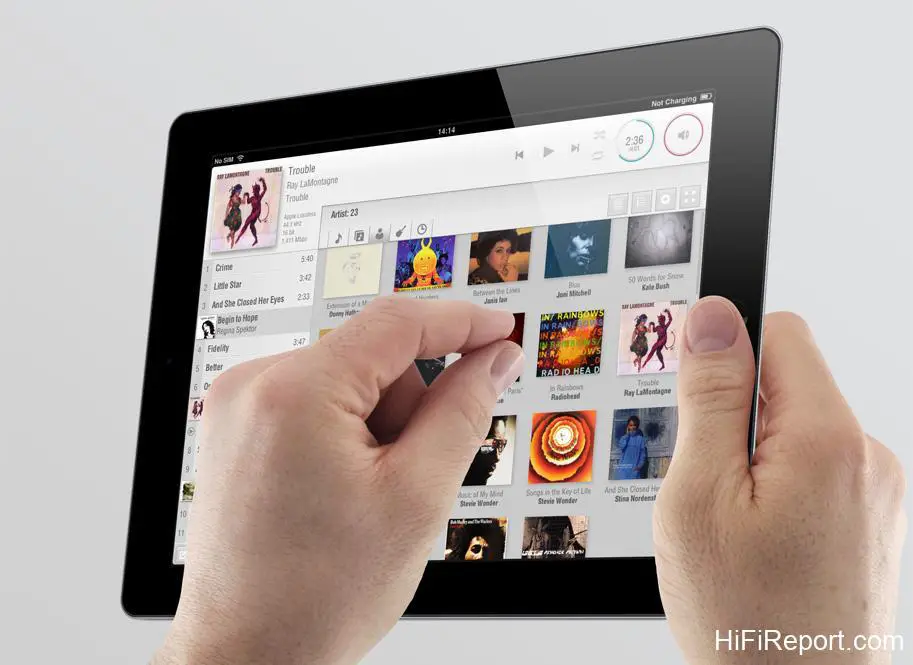
LUMIN APP Music Streaming Interface Review
Since the High-End audio world embraced the era of high-resolution music file playback, a vibrant and competitive landscape has emerged. Unlike CD players and vinyl turntables, the playback of high-resolution music files hinges not only on “hardware” but even more critically on “software.” If high-resolution audio equipment isn’t paired with excellent playback software, it can significantly detract from the overall experience.
LUMIN, since its inception, has garnered acclaim for its proprietary playback software, celebrated for its user-friendliness, smooth operation, and comprehensive feature set. We’ve reviewed LUMIN products numerous times, and this time, we’re focusing specifically on the LUMIN APP.

Download and Install LUMIN APP
The LUMIN APP is available in both iOS and Android versions. However, the iOS version is strongly recommended, and personally, I prefer using an iPad Mini. Its screen size is ample for music file playback, and the Mini is also lightweight!

[LUMIN APP iOS version](Link to iOS App Store – if available, otherwise keep as text)
[LUMIN APP Android version](Link to Google Play Store – if available, otherwise keep as text)
The LUMIN APP’s main screen is incredibly user-friendly and intuitive. I believe anyone familiar with smartphones will be able to navigate it effortlessly. Therefore, I won’t go through every single function but will highlight key points and particularly noteworthy features.
Music Database Specifications
After installation, the first step is to configure your music library. Tap the “Settings” function key located in the top right corner of the screen.
The “Music Library” section displays media servers connected to your network. Here, you can select your music file source. Note that if a device is password-protected, you’ll need to enter credentials to connect. Offline devices are grayed out and cannot be selected. To play music from an external USB drive, you also select it here. The first time the LUMIN APP reads a library, it caches album art and data onto your iPad.
This “Cache” function is a crucial technology for ensuring the LUMIN APP’s smooth performance. Subsequently, only updates are needed when new albums are added.
* **Language Settings:** You might have noticed our LUMIN APP screenshots are in Traditional Chinese. If yours isn’t in your preferred language, simply go to “Settings” and then “About” to change the interface language. This section also displays the version number, in this case, 6.0.4, dated 2016-09-26.
The “Settings” menu contains numerous options. Many are self-explanatory, and to avoid making this article overly lengthy, we’ll focus on the more unique and noteworthy settings.
* **Check Firmware Updates:** This refers to firmware updates for the LUMIN device itself. It’s recommended to keep this option enabled.
* **Tidal and Qobuz:** These are high-quality online music streaming providers. Subscriptions are required for access. Please note that Tidal service availability may vary by region.
* **Volume Control:** If you have a preamplifier or integrated amplifier with volume control, it’s advisable to disable this feature. Enable it if you intend to control volume directly through the LUMIN APP.
* **Analog Audio Output Level:** “Normal” setting is generally recommended. If you find the amplifier volume excessively loud compared to usual, you can set it to “Low” (output level will be reduced by approximately 4dB).
* **Digital Audio Output:** If you’re not utilizing the digital output (e.g., when not using an external DAC), disabling this function is recommended to minimize potential interference.
* **Phase Inversion:** If you encounter recordings with reversed phase, you can activate this function. Out-of-phase audio can sound lacking in focused imaging and precise localization.
* **DSD Playback Ultrasonic Filter:** A common criticism of DSD format is increasing distortion at higher frequencies. If you perceive high-frequency distortion when listening to DSD files, enabling this filter might help. It can also be beneficial if your speakers are older and might not reproduce DSD files optimally.
* **Resampling:** This setting controls whether to upsample or even downsample music files. If you prefer to listen to the original file format without modification, simply disable this function. Notably, the LUMIN APP offers exceptionally granular control over this feature. You can configure resampling settings individually for different file formats, ranging from 44.1kHz up to 384kHz, providing a high degree of customization.
* **Direct Stream Digital (DSD):** This setting determines the DSD decoding method. You can choose between “Bitstream (Native DSD),” “DoP (DSD over PCM),” or converting DSD to PCM. Under normal circumstances, “Bitstream (Native DSD)” is the preferred option.
* **PCM Output Bit Depth:** The default “No Conversion” setting is typically correct. There are two scenarios where you might need to adjust this: Firstly, if your external DAC doesn’t support 24-bit decoding, you’d downsample to 16-bit. Secondly, you might want to upsample files below 24-bit to 24-bit.
* **Playlist Creation:** To save your current playback queue as a playlist, simply tap the “Edit” symbol in the bottom left corner. After naming your playlist, remember to save it. This is a very useful feature.
* **AIRPLAY:** LUMIN supports AIRPLAY, allowing direct wireless music streaming from Apple devices to the LUMIN.